


So many people face challenges in setting up Facebook Business Manager account. The most common problem, though, is giving the access appropriately, whether that means finding the right place or assigning enough assets. Are you also one of them?
Not to worry. This quick and practical guide on adding users to Facebook Business Manager is here to help you out.
Before we get into the steps, we need to clarify that there are two types of Meta Business Manager Access: employee and partner.
We’ll walk you through both of these.
How to Add Employees on Meta Business Manager?
Employee access means you give your Business Manager access to their account. This option works well for sharing access to team members, such as advertisers, designers, and financial analysts.
1. Log in to your Meta Business Manager on the site business.facebook.com
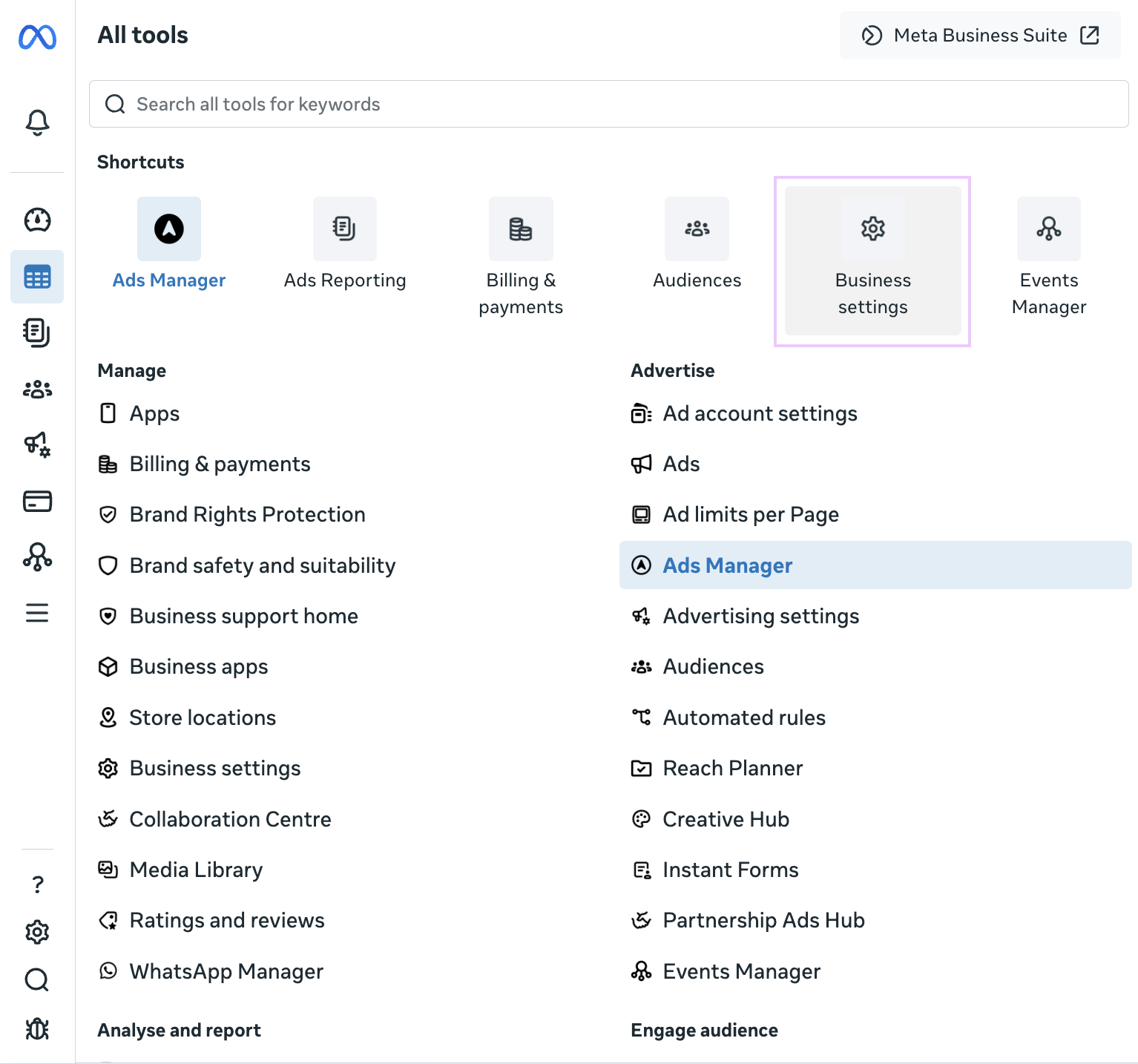
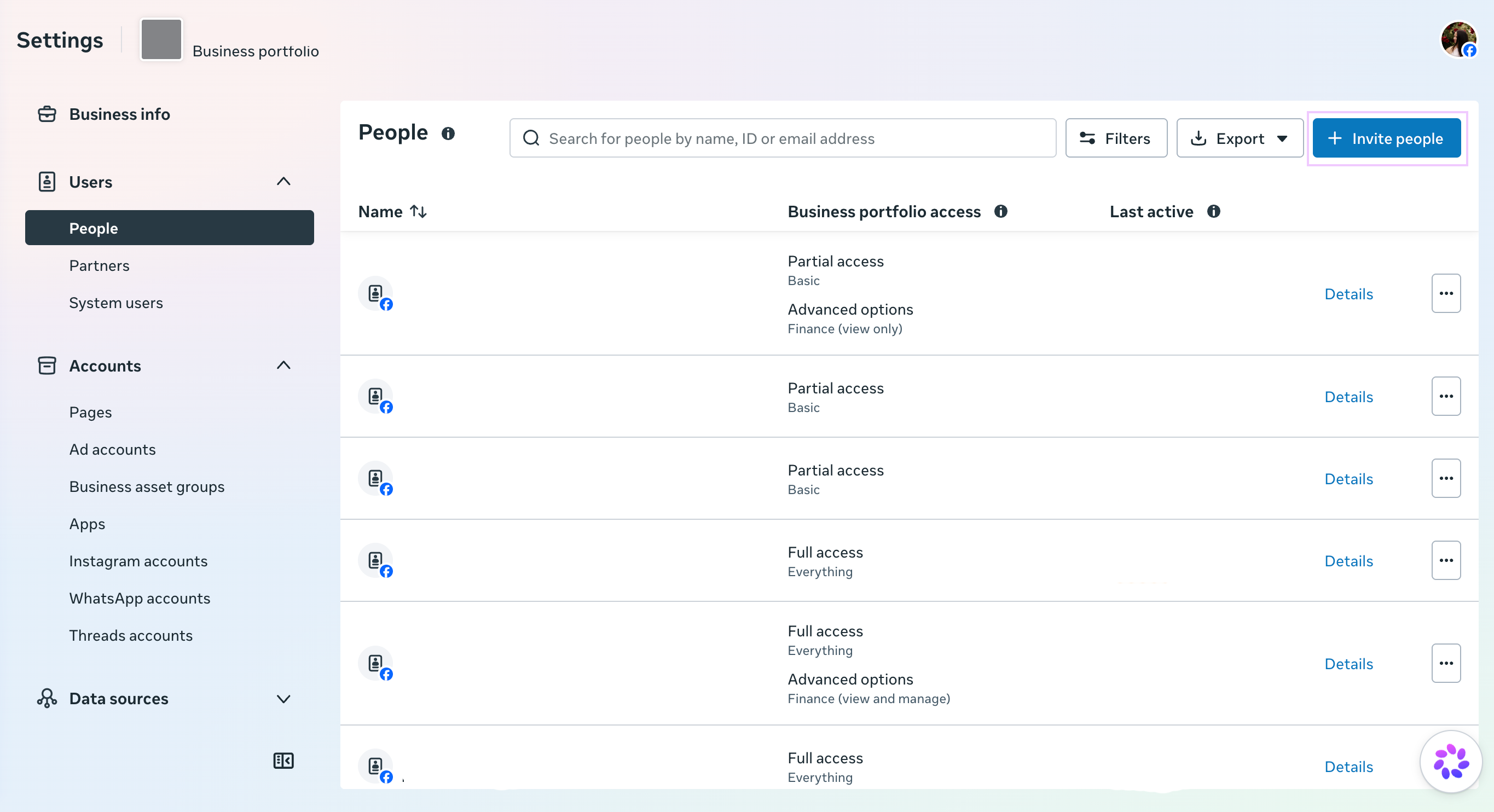
2. Go to the ‘Users’ tab and click on the ‘Invite people’ button
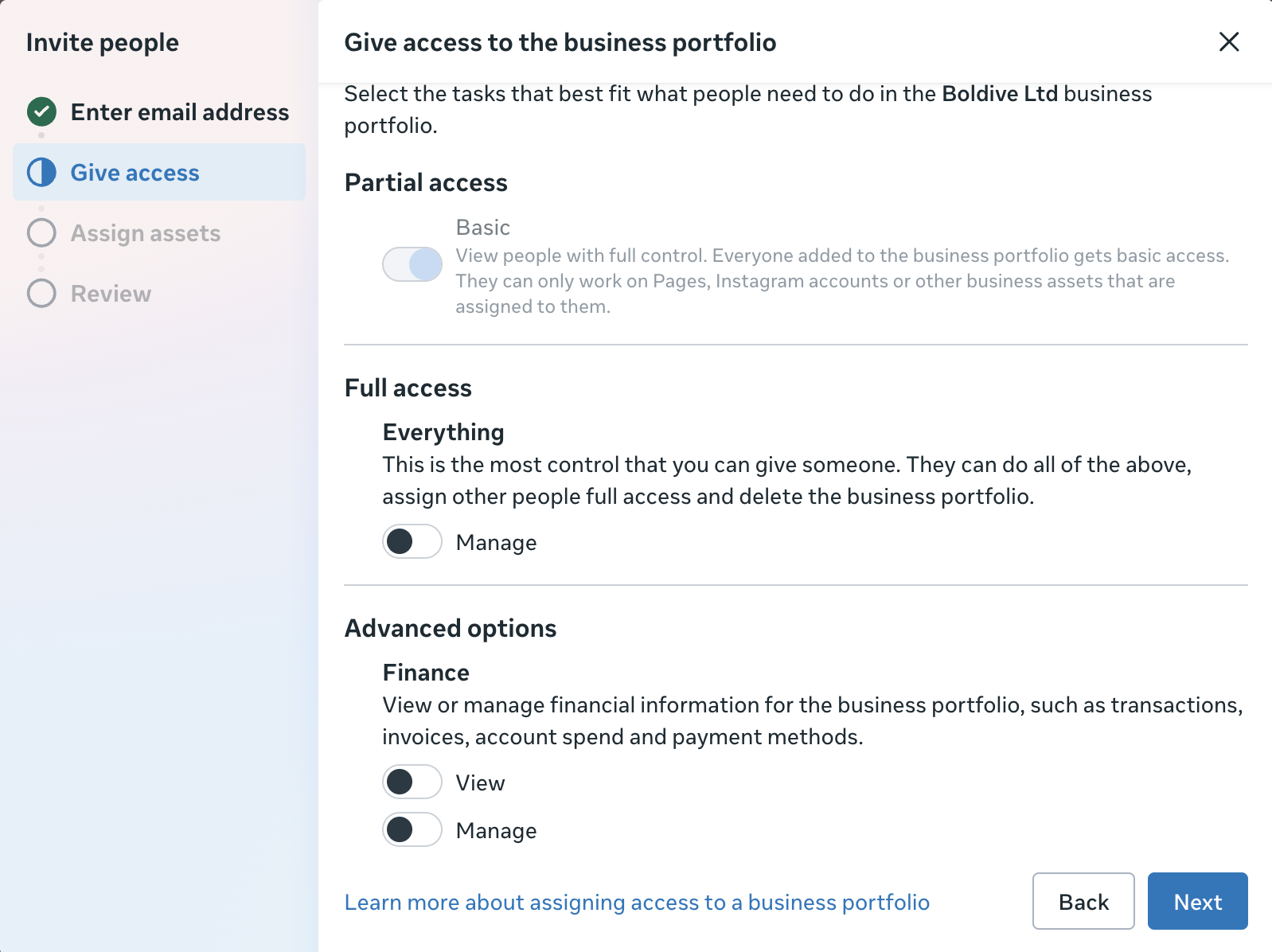
3. Add the person’s email address and choose their access level
You will now see a popup appear where you can enter the email address of the person you would like to add and choose which access you would like to give to them.
Essentially you have three access options:
- Employee access means the added person can work only on specifically assigned accounts and tools.
- Admin access gives them complete control over your business. That means they can add people, edit settings, set up pixels and events. Admin access is the maximum permission you can grant.
- A Finance analyst comes in handy when you need your accountant to download invoices and keep an eye on account spend directly.
- The Finance Editor is similar to the finance analyst’s role, except that the finance editor can edit credit card details and other finance-related details. The finance editor could be a marketing manager, finance team member or CEO in smaller companies.
- A developer can set up Conversion API, Pixel, events, and everything else tech-related. This is the most technical role and is helpful if you have a developer in your team.Note: the last three options will appear when you click on ‘Show Advanced Options’.
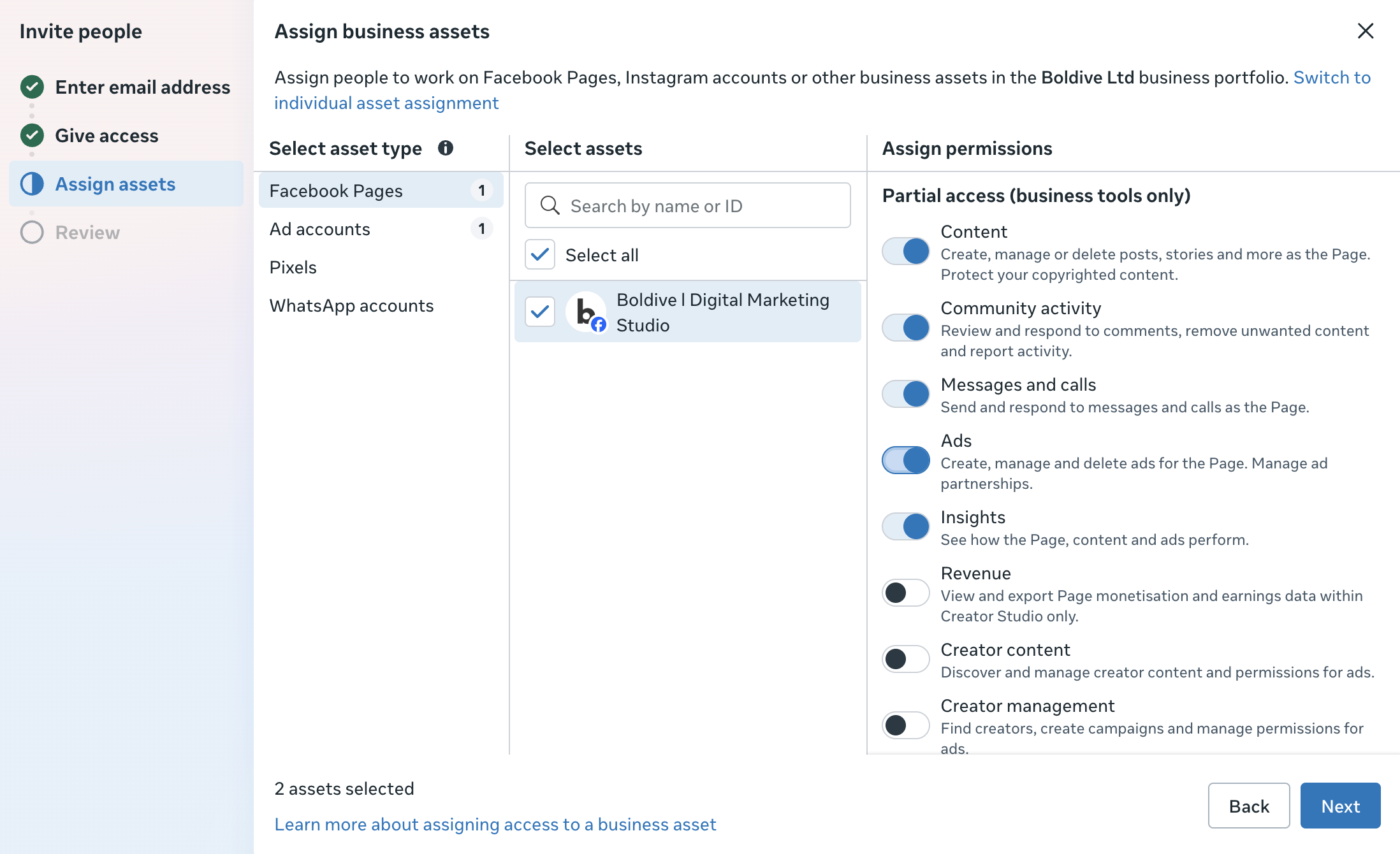
4. Assign them Facebook Pages
To give your Facebook Business Manager access, you first have to provide the person with the page access.
So navigate to ‘Facebook Pages’ on the left side if you’re not there yet.
Once you choose the page, you can decide which type of access you would like to give. You have the option to grant partial access, such as publishing content or sending messages.
Give access to Ad Accounts
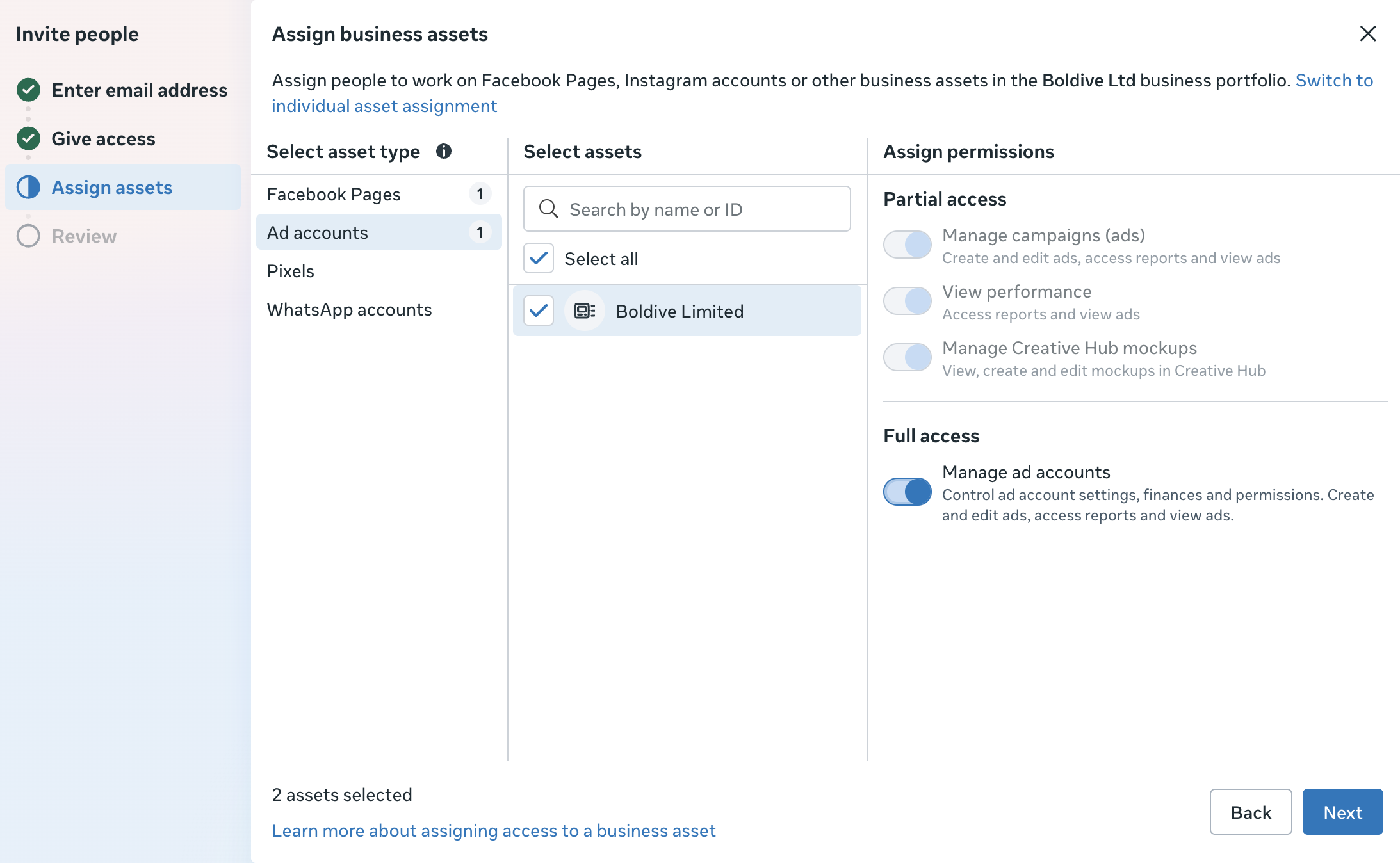
Next, navigate to ‘Ad Accounts’ from the menu on the left column. Choose the ad account you wish to give permission to, and then look at the last column.
This is the place where you choose to give partial or full access.
Partial access means you can provide access to advertisers to manage campaigns, analysts to view performance and reports, or designers to participate in mockup creation in Creative Hub.
If you wish to give a person full access, just turn on the button under ‘Manage Ad Accounts'.
Giving access to Catalogs, Pixels and other
If your business sells products or services online, then you likely want to check under ‘Catalogs’ as well to grant the appropriate access from there. Also, if you have a mobile app and wish to run a campaign for app installs, you need to check under ‘Apps’ to give necessary access.
If you have set up tracking and pixel (which we recommend all businesses do, should you need help with that, contact us here), then move to ‘Pixels’ from the left hand menu.
Let’s say you are giving access to an advertiser, and then you need also to provide them with access to ‘View Pixels’, which means they can create conversion campaigns for you.
If they need to create lookalike audiences, retargeting campaigns or create custom events, you need to grant the ‘Manage Pixel’ access.
And finally, if you have an Instagram account, you can navigate to ‘Instagram Accounts’ to share access from there.
Tip: If you are looking to run Instagram ads, you need to give the advertiser access to the relevant Instagram account.
Now that you have chosen which type of assets you would like to give your employee access to hit that ‘Invite’ button on the bottom right corner.
The person you have invited will receive an email with the invitation, and all they have to do is accept the invitation, fill out their details and voila!
How to Add Partners on Facebook Business Manager?
If you are working with a service provider, you may want to consider using partner access. This means you connect your Business Manager account with their Business Manager account, so no personal accounts are directly involved.
Some of the reasons to prefer partner access over employee access when working with an agency or service provider:
- Keep ownership of your assets – your business retains ownership of its Page, ad account, Pixel and other assets while giving the partner access to the ones they need.
- Manage access more easily – instead of adding individual people from the agency to your business, you give access to the agency's business portfolio. They can then manage access for their own team.
- Keep things separate – when the partnership ends, you can simply remove the partner's access without having to manage individual users.
So, let's dive into the steps.
1. Make sure you’re logged in to business.facebook.com
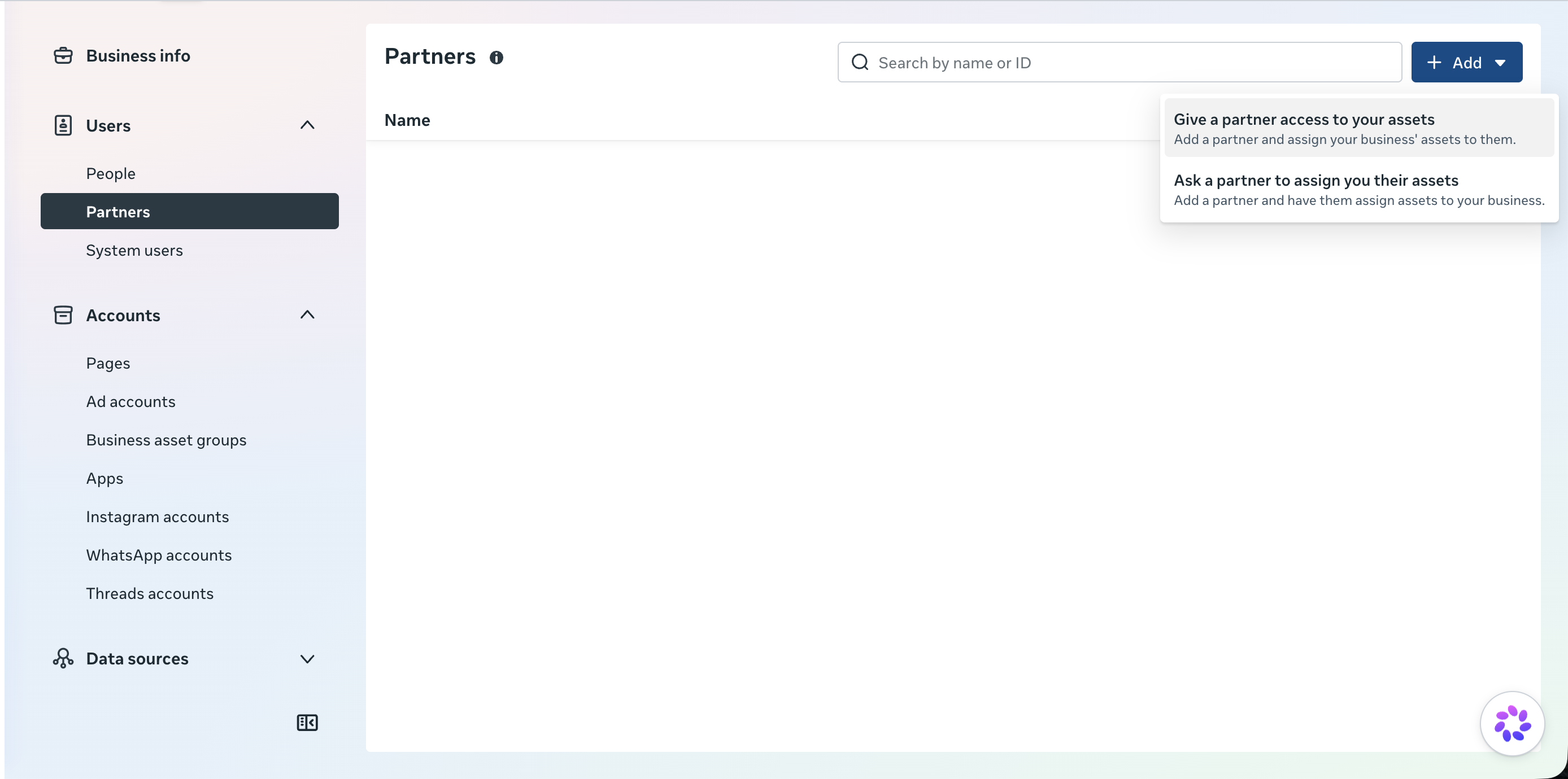
2. Head to ‘Business Settings’ and under ‘Users’ click ‘Partners’
Now you will see two options: sharing assets with a partner or requesting access from a partner. In the case of a marketing agency, you want them to access your business assets, so go ahead and choose “Give a partner access to your assets”.
3. Insert your partner’s Business ID
Now you will see a pop-up where you can add their Business ID. This is a unique number associated with their Meta business account.
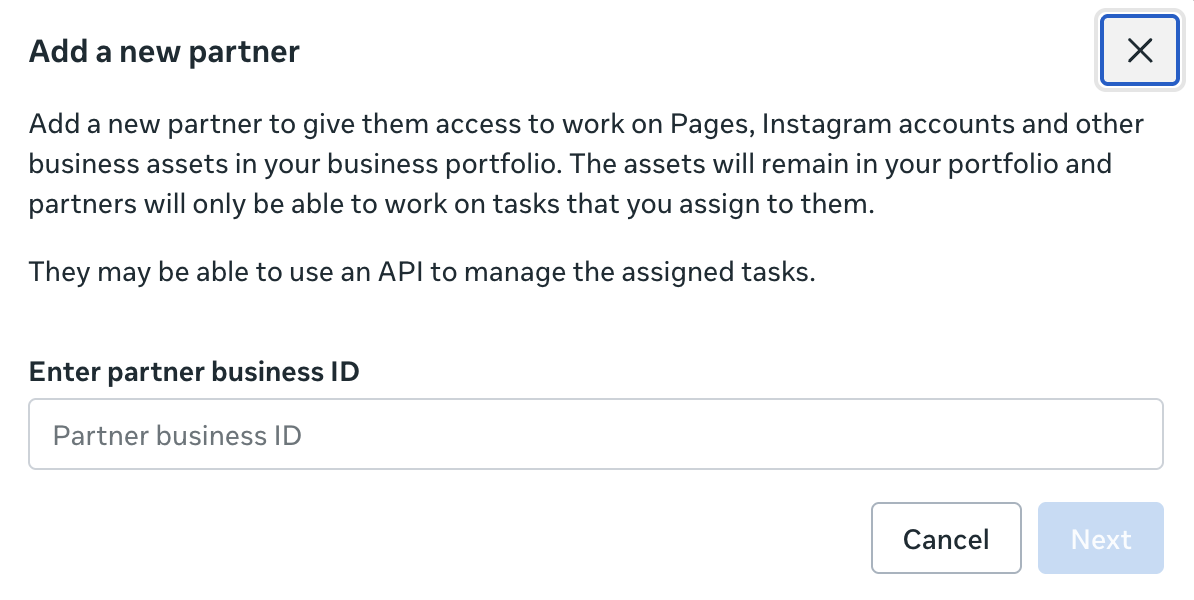
They have probably already provided it to you, but if not, you can request it.
How to find your Facebook Business ID?
If you need to provide the service provider with your Business ID, go to ‘Business Info’ from the menu on the left-hand side. Here you will see the information about your Meta Business account. Just below the name of your business, you will find your Business ID. That’s the one!
4. Now assign the necessary assets
Choose the Pages, ad accounts, catalogues, apps, Pixels and other assets you would like to give your partner access to. For each asset, select the permissions they actually need to do their work and click ‘Save changes’.
That’s it! Your partner now has access to the selected business assets.
Conclusion
Here you have it, a quick guide about how to add users to your Meta Business Page and Ad Account.
If you got stuck anywhere or faced problems we didn’t cover, drop them in the comments below.